
Curious which plan will actually save your team time and money? You’ll get a clear, practical look at pricing tiers and what each level unlocks for your online video projects.
This short intro explains how an easy, browser-based video editing tool speeds content creation with 6,000+ templates and AI helpers like AI Video Generator, AI Text to Speech, and auto subtitles.
We show the free plan limits—12 projects and 10-minute videos—along with known timeline granularity and occasional browser lag so you plan projects without surprises.
You’ll also see three small-business-friendly features: ready templates and stock assets, AI auto subtitles, and cloud access for team collaboration. Finally, learn how the 30‑day money-back guarantee gives you risk-free testing and where this editor stacks up versus InVideo and Renderforest.
Key Takeaways
- Compare plans fast so you avoid paying for unused features.
- Free tier caps: 12 projects, 10-minute videos—plan accordingly.
- Top small-business features: templates, AI subtitles, cloud projects.
- There’s a 30‑day money‑back guarantee on paid plans.
- Choose Pro or Business for HD/4K exports as your needs grow.
What you get with FlexClip as an online video editing tool
Get from idea to publish fast with thousands of templates and AI helpers that cut setup time. This online video editing workspace is built for small teams that need speed and consistent branding.
Fast start with 6,000+ templates and a simple learning curve
You launch projects quickly with 6,000+ templates for promos, intros, slideshows, and niche events. Ready scenes mean you can match tone and layout in minutes.
Drag-and-drop interface keeps the learning curve short for novice video creators and internal teams. You can add stock images, music, and clips without hunting licenses.
AI-powered creation: script, subtitles, TTS, and translator tools
Automate routine tasks using AI Script, AI Video Generator, AI Auto Subtitle, and AI Text to Speech. These tools draft text, generate scenes, add captions, and produce voiceovers so you save time on editing.
Extras like noise reduction and background removal polish audio and imagery. Export in multiple aspect ratios so your social media videos look native on feeds and stories.
- Millions of royalty-free assets to fill gaps fast.
- Screen recording, webcam, and voiceover inside the tool.
- Support for captions and multi-language translation to widen reach.
| Feature | Benefit | Best for |
|---|---|---|
| Templates (6,000+) | Fast brand-aligned starts | Social media promos, intros |
| AI tools (script, TTS, subtitles) | Automates planning and captions | Small teams, novice video creators |
| Stock assets & exports | Fill media gaps and platform-ready sizes | Marketers and content creators |
Overall, using flexclip makes it easier to create high-quality video content fast. If you want a tool that shortens production time, this is a practical choice.
FlexClip pricing breakdown: Starter, Pro, and Annual savings
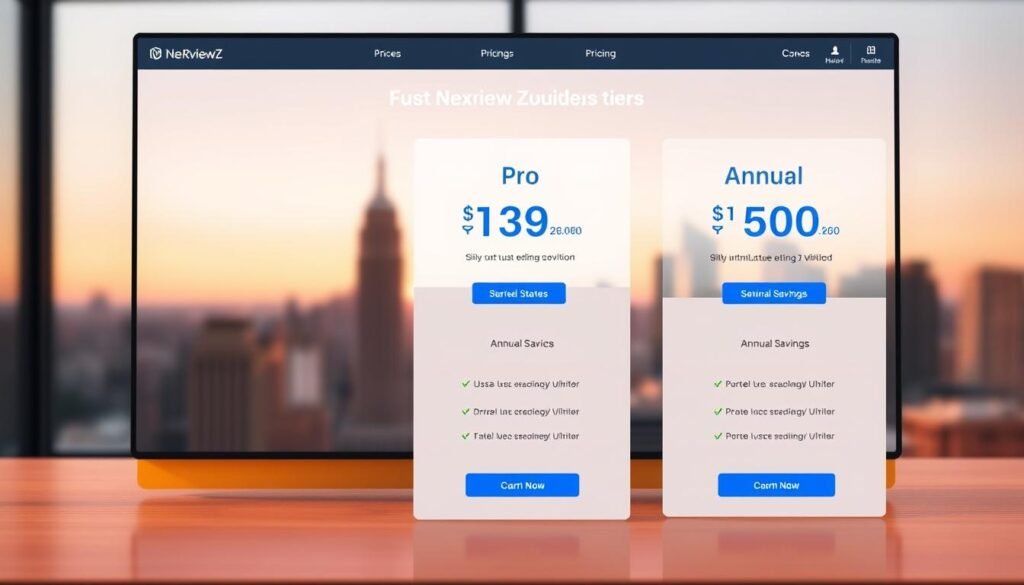
Here’s a clear breakdown of what each plan includes and how much you’ll save by paying yearly. Use this to match the right level of video editing power to your projects and budget.
Starter plan: Free to try for online video editing
Start free to test basic online video editing without commitment. The Starter plan supports 720p downloads, up to 10-minute videos, and limited stock media (1 stock video + 1 stock audio per project).
You can keep up to 12 projects and try limited AI features before upgrading.
Pro plan: 1080p exports, branding, and more stock assets
The Pro (Plus) plan is $11.99/month when billed annually ($143.88/year). You get 1080p exports, no watermark, custom branding and fonts, and the ability to save up to 100 templates.
Per project perks: 5 stock videos + 5 stock audio, 3,600 AI credits per year, unlimited projects, 30GB cloud space, and 100GB video hosting.
Annual savings: Pay yearly to unlock lower effective monthly rates
Paying annually reduces your effective monthly cost and secures the bundled storage and AI credits. Annual billing also includes a 30‑day money‑back guarantee for paid plans.
Business-grade upgrades: 4K export, higher storage, and more AI credits
Business costs $19.99/month when billed annually ($239.88/year). It adds 4K Ultra HD exports, unlimited stock assets, 9,600 AI credits/year, 100GB cloud storage, 1TB hosting, and up to 200 saved templates.
- Try free: Test 720p exports and basic media across up to 12 projects.
- Upgrade to Pro: Get 1080p, branding tools, and 3,600 AI credits yearly.
- Scale to Business: Unlock 4K, unlimited assets, and larger cloud/hosting quotas.
- Risk-free: 30‑day money‑back guarantee on paid plans.
Call to action: Start free now, then upgrade to Pro or Business annually to secure HD/4K quality and maximize savings.
FlexClip vs. InVideo vs. Renderforest: Which fits your workflow
Picking the right platform comes down to templates, captions, and how fast you move from idea to publish.
InVideo targets social media creators with deep social-first templates and built-in collaboration. It is strong for teams that share drafts and iterate on ads or short clips.
Where InVideo stands out
Great template depth and teamwork features. Best when social posting cadence and shared review matter.
Where Renderforest stands out
Renderforest excels at brand kits, logo intros, and polished opener templates. It helps users build consistent brand assets fast.
Where FlexClip shines
Fast AI drafting and high-accuracy transcription speed captioning and scripting. The drag-and-drop interface and timeline waveform mirror familiar design software so onboarding is quick.
| Platform | Strength | When to choose |
|---|---|---|
| InVideo | Social templates, collaboration | Teams focused on social media campaigns |
| Renderforest | Brand kits, intro wizards | Users needing polished intros and logos |
| FlexClip | AI Script, Auto Subtitle, drag-and-drop | Creators who value fast captions and quick edits |
Bottom line: If AI-assisted script and subtitles, plus an intuitive editor, speed your video creation, this tool fits a lean workflow.
FlexClip features small businesses love
Create polished marketing quickly by combining ready templates, a huge stock library, and cloud projects that keep your team in sync.
Templates and stock assets to make videos fast
Use thousands of ready scenes and millions of photos, clips, and music to assemble branded promos in minutes.
Save time by dropping images and music into prebuilt layouts, then export in platform-ready aspect ratios for social media posts.
AI auto subtitle and transcription to save time
Automated captions speed accessibility and engagement. The AI Auto Subtitle feature delivers high accuracy and animated word-highlighting to help viewers follow text.
This reduces manual captioning work and helps you publish more videos with consistent subtitles.
Cloud-based projects for teams across platforms
Work from any device—no installs, no server headaches. Cloud projects let multiple users access and edit the same project.
Keep brand consistency with saved templates, custom logos, and fonts on paid tiers. Even novice video editors can use simple drag-and-drop editing tools to create high-quality video content fast.
- Assemble promos faster with templates and stock assets.
- Cut captioning time with accurate AI subtitles.
- Collaborate in the cloud to move projects from draft to publish.
Known limits and considerations before you buy
Before you commit, know the practical limits that affect daily workflows and delivery timelines. Being candid about constraints helps you choose the right plan and avoid surprises when producing videos for clients or social channels.
Free tier caps and stock limits
You should plan around the Free plan’s caps: up to 12 projects, 10-minute max per video, and a visible watermark.
Each project is limited to 1 stock video and 1 stock audio. If you need more assets or no watermark, consider upgrading to a paid tier.
AI credit use for captions and generators
Budget AI credits for captioning and AI video generation. Captioning typically consumes 2–3 credits per project depending on length and languages.
Lock clip lengths before running auto subtitles to avoid repeat credit use from re-runs.
Performance, timeline granularity, and recording limits
Some users report occasional browser-based lag when working with large media files. Use a stable connection and smaller upload batches to reduce delays.
You may find frame-level edits hard to achieve because timeline zoom and fine-grain trimming have limited granularity. That affects very precise cuts.
Screen recording is usually limited to a single screen at a time, so confirm capture needs before you rely on it for multi-window demos.
- Tip: Move to Pro or Business once you outgrow Free’s caps to unlock more projects, assets, and AI credits.
- Tip: Balance speed and simplicity against pro-grade control when you choose a plan.
Trial, refund, and money-back guarantee details
Begin on the free plan to validate workflow fit and measure real-world time savings. You can test core features, run sample projects, and check output quality without paying.
Try the free tier, then upgrade with a 30-day money-back guarantee
Start risk-free: The free plan gives you basic export and editing access so you can see how the tool fits your needs.
Upgrade confidently: If you move to a paid plan, a 30‑day money‑back guarantee covers your purchase. If it’s not right, request a refund within 30 days.
- What paid unlocks: remove watermarks and get 1080p or 4K exports, larger storage, and more AI credits.
- Who benefits: users and novice video creators can run a full campaign cycle and evaluate results.
Call to action: Start your free experience now, then upgrade annually to save and test premium features with confidence.
How to claim FlexClip discounts or coupons
Start on the free tier, complete a short project, and then move to checkout to see available coupon options. This lets you test templates, AI subtitles, and export quality before you commit.
Step one: Start free and create your project
Create a quick sample to confirm the tool meets your needs. Use templates, add text and captions, and export a short video so you know what level of quality you need.
Step two: Choose Pro or Annual at checkout to unlock savings
Select the Pro (Plus) or Business plan and choose annual billing. Annual rates lower your effective monthly cost: Pro is $11.99/month billed yearly; Business is $19.99/month billed yearly.
Step three: Apply coupon code (if available) before payment
On the checkout page, enter any coupon code you have. Coupons typically stack with annual pricing so you save more up front.
Step four: Confirm billing cycle and finalize purchase
Review storage, AI credits, and export options before you pay. After upgrading you instantly remove watermarks and gain branding, more AI credits, and HD/4K exports.
“Choose annual at checkout and apply your coupon before paying to secure the best deal.”
- Tip: Begin on free to validate the editor for your content.
- Tip: Pick annual billing to maximize savings and credits.
- Tip: Apply coupons at payment and confirm the billing cycle.
Call to action: Get your discount—choose Annual at checkout and apply your coupon before paying to save on video editing and publishing.
Best use cases for small businesses in the United States
For many U.S. small teams, the right video tool turns a single idea into multiple platform-ready assets fast.
Social media promos, ads, and reels with captions
You produce captioned social promos and reels quickly, improving accessibility and watch-through on Instagram, TikTok, and YouTube.
High-accuracy transcription and animated subtitles make short clips more engaging and compliant with silent autoplay behavior on feeds.
Product explainers, how-to videos, and pitch reels
You assemble product explainers with on-screen text, overlays, and voiceover to reduce support tickets and increase conversions.
Templates with animated elements speed creation of investor or sales pitch reels that look polished without a studio shoot.
- Repurpose blog posts or URLs with AI to draft scripts and create multi-platform content.
- Maintain branding with custom logos and fonts and export in platform-optimized aspect ratios.
- Use stock images and clips to fill gaps and export HD/4K for crisp product visuals.
- Save project templates to streamline batch production and repeat campaigns.
Conclusion
Decide with confidence: test core features on the free tier, then upgrade if you need HD, more assets, or extra AI credits.
You get a faster path from idea to publish with 6,000+ templates, an intuitive interface, and AI tools for script, text to speech, and auto subtitles. That reduces manual work so your team ships more videos with less overhead.
Plans are clear: Free, Pro, and Business, with annual billing for the best savings and a 30‑day money‑back guarantee if it’s not right. Expect great speed for most tasks, but know timeline granularity and occasional browser lag may limit frame‑perfect cuts.
Start free today, then upgrade to Pro or Business annually to lock in your discount and publish more video, faster.